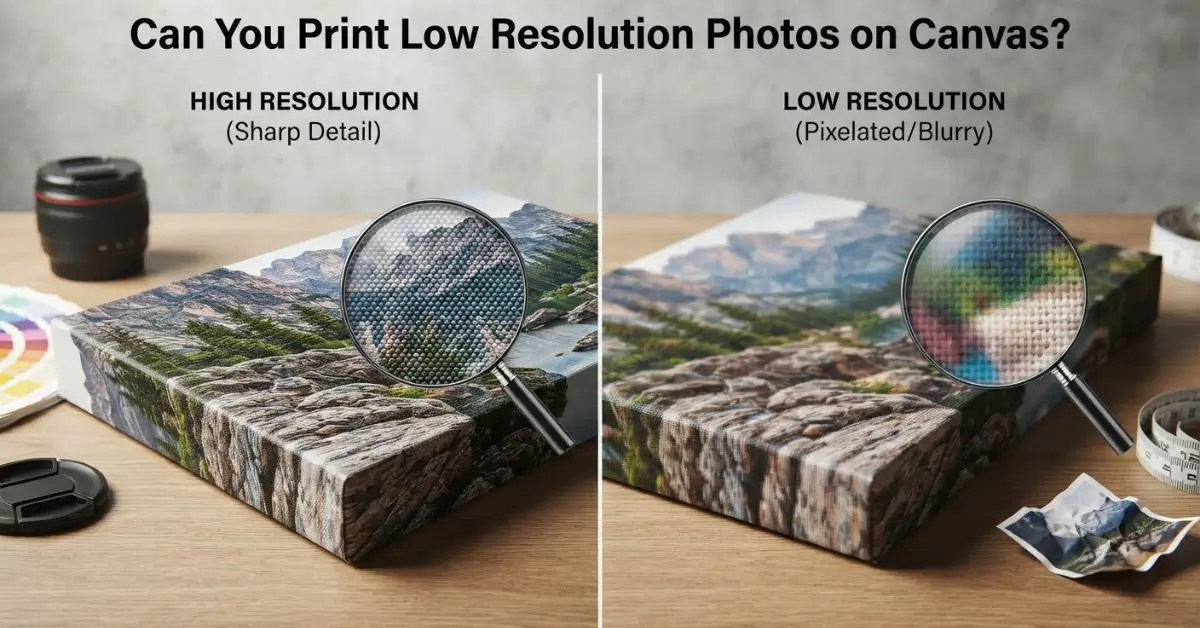
Yes, you can print low resolution photos on canvas, but the result depends on the image’s pixel dimensions, the final canvas size, viewing distance, and how much the image needs to be enlarged. A small image may work surprisingly well for a modest canvas, while the same file could look soft or pixelated when stretched across a large wall.
The good news is that low resolution does not always mean “unusable.” With careful sizing, image enhancement, and professional prepress checks, some lower-quality photos can still produce attractive canvas prints.
Why Low-Resolution Photos Can Still Work on Canvas
Print resolution is not determined by DPI alone. What matters first is how many actual pixels your image contains and how large you want to reproduce it.
For example, a 2,000 × 1,500 pixel image contains enough information to produce a much smaller print at high pixel density than it does a large wall canvas. If you enlarge that same image substantially, the pixels become more noticeable, and fine details can become softer.
Adobe notes that 300 pixels per inch (PPI) is a standard target for high-quality printing but also points out that lower resolutions can work for large-format prints viewed from farther away.
That distinction is particularly important for canvas because wall art is often viewed from several feet away rather than from a few inches.
The real question isn’t simply whether a photo is low resolution. It’s whether the file contains enough usable detail for the final canvas size and viewing distance.
What Makes a Photo Too Low Resolution for Canvas?
There is no single pixel number that makes every photo suitable or unsuitable.
Instead, look at three things:
Pixel Dimensions
A photo that is 600 × 400 pixels has far less usable information for a large canvas than a 4,000 × 3,000 pixel image.
Always check the actual pixel dimensions rather than relying only on a file’s DPI metadata.
Final Canvas Size
The larger the canvas, the more pixels you need to maintain detail.
A low-resolution photograph may look perfectly acceptable as a small decorative canvas but become noticeably soft when enlarged to a large feature wall.
Viewing Distance
A canvas viewed from close range needs more visible detail than one hanging several feet away.
This is why a large wall canvas does not necessarily require the same pixel density as a small print intended to be examined up close.
How to Check if Your Photo Is Suitable for Canvas Printing
Before sending a photo to print, calculate its effective resolution at the intended print size.
Use this simple formula:
Effective PPI = Image Pixels ÷ Final Print Size in Inches
For example, suppose your photo is 3,000 pixels wide and you want a 30-inch-wide canvas:
3,000 ÷ 30 = 100 PPI
That may be perfectly reasonable for a large wall display depending on the viewing distance and image content, even though it is below the commonly cited 300 PPI benchmark for high-quality close viewing.
Now imagine using that same 3,000-pixel image for a 60-inch-wide canvas:
3,000 ÷ 60 = 50 PPI
At that point, you should inspect the image carefully before approving the print.
This is a much more useful way to judge low quality image printing than simply looking at the DPI number inside the file.
When Low-Resolution Photos Usually Work
Some low-resolution images can produce attractive canvas prints when the conditions are right.
They are more likely to work when:
- The final canvas is not excessively large
- The image has good lighting and contrast
- The subject does not contain extremely fine detail
- The photo will be viewed from a normal room distance
- The original image has not already been heavily compressed
- The canvas texture helps soften minor imperfections
- The file can be improved before printing
Portraits, landscapes, abstract images, and atmospheric photographs can sometimes tolerate enlargement better than highly detailed architectural or product photographs.
For example, a slightly soft sunset photograph may still look beautiful on a large canvas because the viewer is responding to the overall color, composition, and mood rather than examining tiny details.
When Low-Resolution Images Are More Likely to Look Bad
Some images are much less forgiving.
Be cautious when the photo contains:
- Small faces
- Fine hair or fur
- Architectural details
- Text or logos
- Sharp product edges
- Intricate patterns
- Heavy JPEG compression
- Severe motion blur
- Significant cropping
These details reveal enlargement problems quickly.
A heavily pixelated photograph cannot simply be enlarged indefinitely without consequences. Increasing the dimensions adds pixels, but it does not magically recover every detail that was never captured in the original image.
Upscaling can improve a weak image, but it cannot turn missing information into perfectly authentic detail.
How to Improve Image Quality for Canvas Printing
If the photo is important but its resolution is limited, there are several things you can do before printing.
1. Start With the Best Original File
Before editing anything, look for the original photograph.
A file downloaded from social media, sent through a messaging app, or repeatedly saved as a JPEG may contain considerably less information than the original camera file.
If possible, use the original high-quality JPEG, TIFF, RAW file, or highest-resolution version available.
2. Crop Less Aggressively
Heavy cropping can turn a good photograph into a low-resolution image very quickly.
If you have the original uncropped photo, consider using more of the frame instead of enlarging a small cropped section.
3. Use AI Image Upscaling Carefully
Modern AI image upscaling can be useful when a photo needs to be enlarged for a canvas.
For example, Adobe Lightroom’s Super Resolution can produce an image with twice the original width and height, resulting in four times the total pixel count. Adobe also provides newer AI-based generative upscale tools for increasing resolution and improving perceived detail.
But don’t treat AI enlargement as a magic fix.
Always inspect the enhanced image at 100% and check faces, hands, hair, text, edges, and repetitive patterns for unnatural artifacts.
4. Apply Photo Enhancement Before Printing
Basic photo enhancement can make a significant difference when used carefully.
Depending on the image, adjustments may include:
- Exposure
- Contrast
- White balance
- Noise reduction
- Sharpening
- Texture
- Color correction
Adobe specifically recommends tools such as sharpening, noise reduction, and texture adjustments when preparing enlarged images.
The goal is not to make the photograph look artificially sharp. It is to prepare it so the important details remain visually clean after enlargement and printing.
A Practical Test Before You Order
One of the best ways to avoid disappointing canvas prints is to evaluate the image at the actual intended print size before production.
Here’s a simple workflow:
Step 1: Find the original photo.
Step 2: Confirm its pixel dimensions.
Step 3: Decide the exact canvas width and height.
Step 4: Calculate the effective PPI.
Step 5: Upscale the image if necessary.
Step 6: Inspect important details at 100%.
Step 7: View the image at a realistic distance.
Step 8: Ask the print provider for a quality assessment if you’re still unsure.
This last step is often overlooked. A professional printer can tell you whether the file is likely to produce acceptable results at the requested size before you commit to production.
How to Fix Blurry Canvas Prints Before Printing
If your photo already looks blurry on screen, simply increasing its dimensions will not necessarily solve the problem.
First determine why it is blurry.
If the problem is low resolution, AI upscaling or conventional resampling may help.
If the problem is camera shake or motion blur, sharpening may improve the appearance to a limited degree, but it cannot fully reconstruct the original scene.
If the problem is compression, starting with a better-quality source file is usually preferable to repeatedly enhancing the compressed version.
For this reason, pixelated photo fixes should begin with identifying the source of the problem rather than immediately applying maximum sharpening.
Does Canvas Texture Hide Image Imperfections?
To some extent, yes—but don’t rely on canvas texture as a solution to a genuinely poor image.
Canvas has a visible surface texture that can make minor softness less distracting than it might appear on a glossy photographic print.
That can be helpful for certain artistic images.
However, severe pixelation, obvious compression artifacts, or badly blurred faces will still be visible. The texture may soften small imperfections, but it cannot compensate for major loss of image information.
What Resolution Should a Canvas Print Be?
A common benchmark for high-quality printing is around 300 PPI, particularly for images intended to be viewed closely. Adobe identifies 300 PPI as an industry-standard target for high-quality prints.
However, canvas artwork often has different practical requirements.
Large wall art is normally viewed from farther away, so a lower effective PPI can still produce a visually pleasing result. The ideal file therefore depends on the canvas dimensions, image subject, viewing distance, printer, and intended finish.
Instead of asking, “Is this image 300 DPI?” ask:
“Does this image contain enough detail for the size I want to print?”
That question leads to a much more useful answer.
When to Ask a Professional Canvas Printer
If the image is sentimental, expensive to reproduce, or intended for a large wall, don’t guess.
Send the original file to a professional printer and ask for a pre-print image assessment.
A good provider can check the actual pixel dimensions, intended print size, cropping, image quality, and likely enlargement requirements.
ArtPlus, for example, can help evaluate artwork for custom canvas printing and advise on the appropriate size and production approach before printing.
This is especially useful for old family photographs, phone images, screenshots, and photos recovered from social media where the original resolution may be limited.
Can You Print an Old or Low-Quality Photo on Canvas?
Yes, in many cases.
Old photographs can sometimes be restored, scanned at a higher resolution, cleaned up, and enlarged before being printed on canvas.
The best workflow is usually:
Original photo → high-quality scan → restoration → enhancement/upscaling → final-size preparation → canvas printing
If you’re working with a physical photograph, scanning it properly can be more valuable than trying to enlarge a low-resolution screenshot of the same image.
For particularly important family photographs, keep the original scan untouched and create a separate enhanced version for printing. That way, you always retain the original digital master.
Conclusion
A low-resolution photo does not automatically mean you have to abandon the idea of a canvas print.
The better approach is to assess the original pixels, final canvas size, viewing distance, and image subject together. If necessary, improve the file with careful editing or AI upscaling, then have the final version checked before printing.
For valuable or sentimental images, a professional assessment can save you from spending money on a canvas that doesn’t look the way you expected.
Frequently Asked Questions
Can low resolution images be printed?
Yes. Low-resolution images can sometimes produce good canvas prints, particularly when the final artwork is appropriately sized and viewed from a normal distance. The image content and viewing conditions matter as much as the nominal resolution.
What is the recommended photo resolution for canvas prints?
Around 300 PPI is a useful high-quality benchmark, but it is not an absolute requirement for every canvas. Large wall art can often work at lower effective resolutions because it is viewed from farther away.
How can I make a low resolution photo high resolution for printing?
You can use image upscaling or AI-based enhancement tools to increase pixel dimensions and improve perceived detail. Adobe’s Super Resolution, for example, can double an image’s width and height.
What should I do if my photo resolution is too low?
First, find the original file and avoid unnecessary cropping. If the resolution is still insufficient, try careful AI upscaling and ask your canvas printer to assess the enhanced file before production.
Will a low-resolution photo look blurry on canvas?
It can, especially when the image is enlarged significantly beyond its available detail. However, canvas texture and normal viewing distance can make mild softness less noticeable than it would be on a close-viewed glossy print.
Can AI completely fix a low-resolution photo?
No. AI can add plausible detail, improve edges, and increase pixel dimensions, but it cannot guarantee recovery of information that was never captured. Always review an AI-enhanced image carefully before printing.